Classic Mac Experience
Learning something new offers a unique experience to take notes about tips, tricks and lessons learned that an experienced user may not think is noteworthy or think of at all. This is a bit of a journal of my experiences learning the ropes of Mac OS 9 in 2025.
This was originally written in April 2025 but I forgot to publish it. Oh well.
The first Mac I owned an actually used on a regular basis was a G4 Mac Mini that shipped with Mac OS X.
I had some brief experiences with classic Macs in elementary school and at friends’ houses back then, so I knew some of the basics like dragging disks and CDs to the trash to eject, and that there’s no such thing as right-click, but that was about it.
Thanks to all the buzz and fun with GlobalTalk, I felt like I wanted to be properly involved in it beyond getting Windows 2000 to technically work.
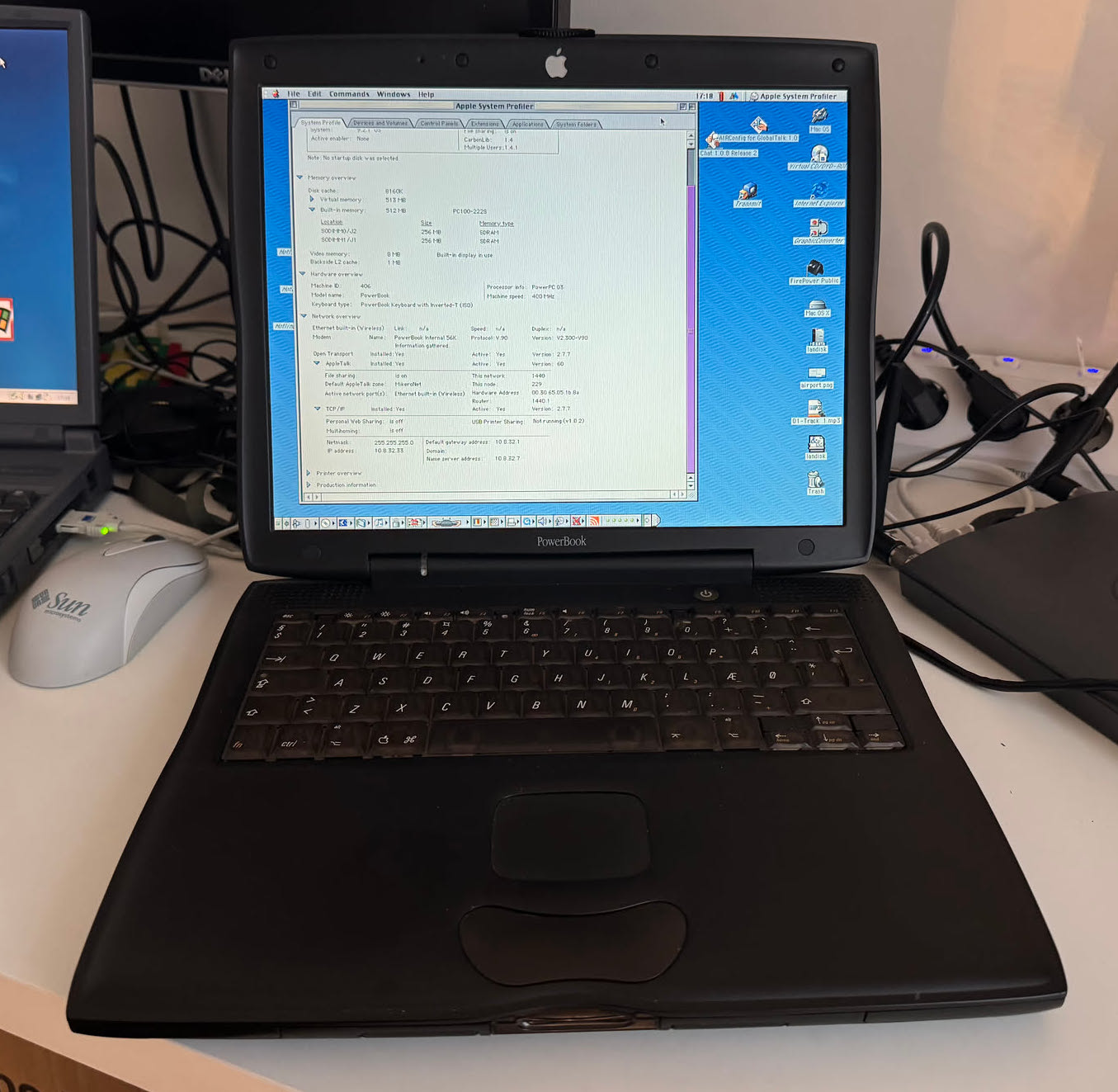
I got a PowerBook G3 “Pismo” and had fun setting it up and learning about classic Mac OS along the way.
Renaming the hard drive
I re-initialised the hard drive during Mac OS installation and it got the name untitled. I wanted to rename it, but I couldn’t figure out how.
I learned you can’t rename a drive if File Sharing is enabled. So, turn that off (Apple menu > Control Panels > File Sharing, click Stop), then you can click on the drive, hit Enter ↵ , and rename.
Now you can turn file sharing back on.
Software
Sources
Macintosh Garden
This is a great site dedicated to Mac OS software. It’s organised into categories so if you’re not sure what you want or need, you can browse and find it.
WinWorld
Despite the name, this site also has a great deal of Mac OS software and has nice informational pages about each piece they have.
Archive.org
There’s a lot of Mac OS software available on Archive.org. If you know what you’re looking for, there’s a decent chance you can find it here to download.
Since Archive.org is a rather generic media repository and users are free to categorise media however they want, it’s not as easy to identify strictly-Mac software.
You could try searching for “Macintosh”
Useful Stuffs
- Virtual CD/DVD-ROM Utility - Mounting disc images
- GraphicConverter - Image manipulation. See Screenshots below.
- BBEdit - Text editor, good for code
- CodeWarrior - Full C/C++ IDE
- Transmit - FTP client
Converting .toast files?
CD images created on Mac OS often have the .toast extension as they would have been
create with Roxio Toast, a popular CD burning and imaging application of the era.
I figured I’d have to convert this to ISO to burn it on Linux or Windows, but nope, turns out these are ISO files and I just had to change the extension.
Burning a Mac OS 9 install CD using Nero 5.5 on Windows 2000 running on a Pentium III felt era-appropriate and it worked perfectly after changing the file extension.
Hang after boot
My PowerBook G3 “Pismo” doesn’t have built-in SCSI, so I tried out my Adaptec SlimSCSI PCMCIA card and hooking-up an Iomega Jaz drive. Mac OS seemed to recognise the SCSI card but not the Jaz drive, so I installed the Iomega Tools. Then my system hung. I got the spinning watch cursor and the clock stopped, so that’s a pretty good indication that something was awry.
I learned that you can boot the computer while holding Shift ⇧ to start the OS without any extensions and then you’ll have the chance to disable the offenders.
Using Sherlock I searched for “Iomega” to delete all traces of it, but that still didn’t work. Something was still locking me up after booting was complete.
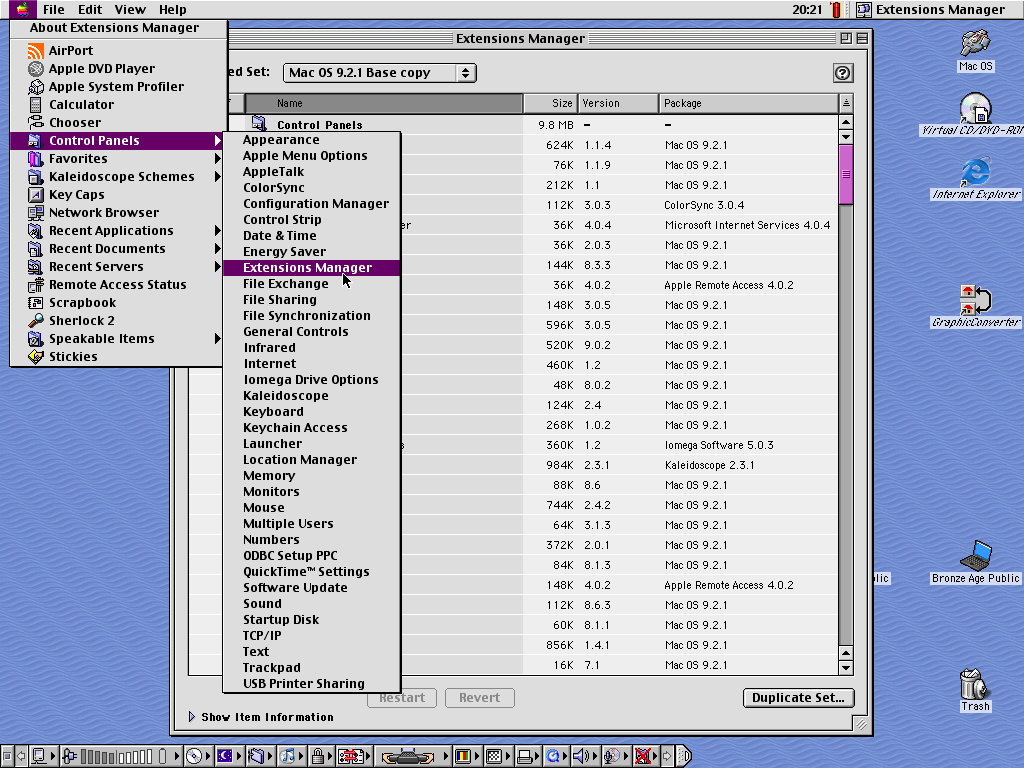
I used Control Panels > Extension Manager and switched to Mac OS 9.2.1 Base, duplicated it, disabled even more extensions I’m quite sure I don’t need and then rebooted. Problem solved. I’m still not sure which extension caused the issue, but my system works.
After all this, I actually don’t think Mac OS 9 supports the SCSI card.
Deleting a locked file
I downloaded the Iomega Jaz software and decompressed it. The disk image was locked, whatever that means.
When I didn’t need it any more I chucked it in the Trash as one does and tried to empty it, but the system wouldn’t let me.
I learned that holding down Option ⌥ when emptying the trash would do the trick.
Taking screenshots
I should have figured this out on my own since it’s nearly the same as modern macOS.
- Command ⌘ + Shift ⇧ + 3 - Capture the whole screen.
- Command ⌘ + Shift ⇧ + 4 - Capture a selection of the screen.
Then the file gets saved to the root of your hard drive as Picture X.
It’s a PICT file, so I use GraphicConverter to convert to PNG.
Folder with ‘ƒ’ in the name?
I wondered why some apps I downloaded had the ‘ƒ’ character in the name. It turns out this is just a convention to tell users that this is a folder and you can open it. A side effect of custom folder icons is that they may appear to a user as being just a file unless Finder is in List view mode.
SSH
As I spend time on any computer the probability I will want to SSH somewhere approaches 1.
I figured there are SSH clients for Mac OS 9, but they might be too outdated with their encryption to connect to properly-secured modern servers.
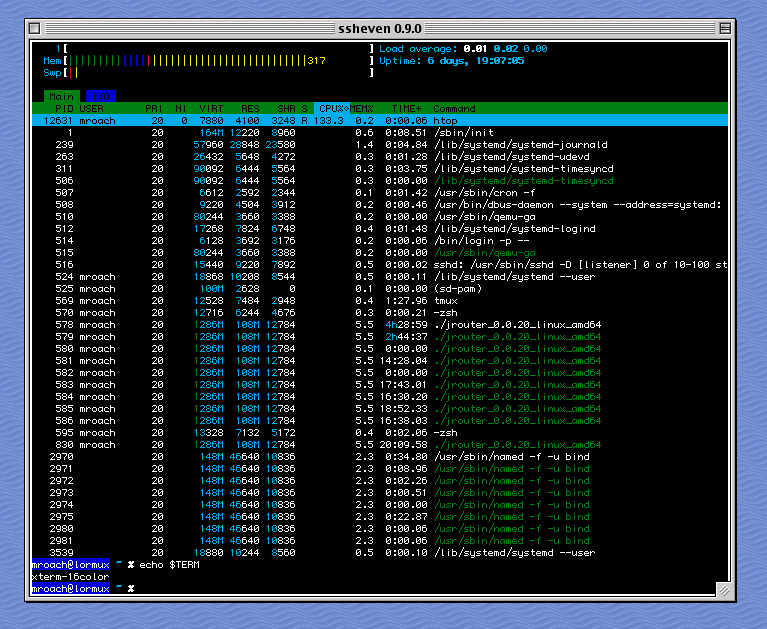
Fortunately, I was wrong! There’s an open source modern SSH client for Mac OS 7/8/9 called SSHeven.
Internet Explorer 5: Excruciatingly slow downloads
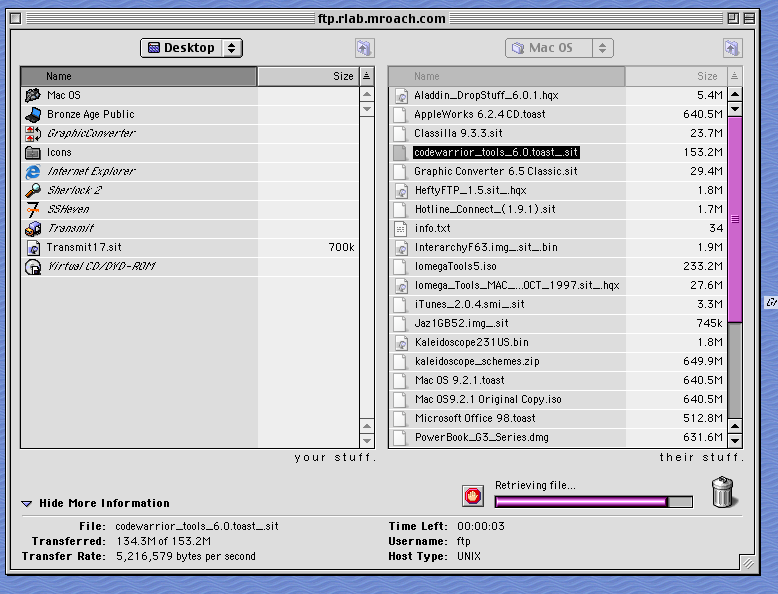
I have an internal web and FTP server to easily get files onto older computers from my main server. This has worked great on all my PCs, but with IE 5 on the Mac, downloads are incredibly slow, like 100 kB/sec. I don’t know if this is an IE issue, a resource issue, or what.
I installed Transmit to download files over FTP and what a difference that made. Now transfers are moving as much more acceptable speeds.
AirPort and Ethernet
Shortly after getting my PowerBook I installed an AirPort card so I could connect wirelessly! Of course I have a separate access point with weak security on a jailed VLAN just for retro computers.
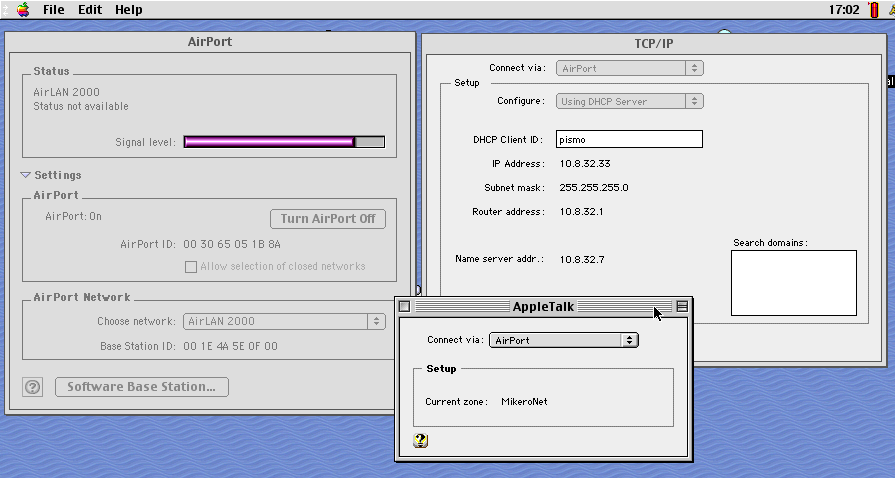
On modern operating systems we’re accustomed to the OS switching between Ethernet and Wi-Fi automatically. Not so in Mac OS 9. For both AppleTalk and TCP/IP you have to open up their respective control panels, select the interface you want to use, and then close them to apply the changes.